Maintenance for the week of April 13:
• PC/Mac: No maintenance – April 13
• PC/Mac: No maintenance – April 13
Update 50 is now available for testing on the PTS! You can read the latest patch notes here: https://forums.elderscrollsonline.com/en/categories/pts
Lag, crashes and errors left and right.

Jorvald
Soul Shriven
Hey guys, so my guild and I have recently switched to ESO. We've played for about a few weesk or so without any major issues, but these past few days have been... terrible for me. I'll lag (internet connection is fine. I run both GW2 and WoW at the same time without any problems). Sometimes it's skill lag, sometimes it's chat lag and sometimes it's both. Sometimes the lag ends up freezing me in place, but I can still logout, while other times it'll crash me out of the game and return me to the sign in screen without any error messages. Other times I can't login without getting various errors.
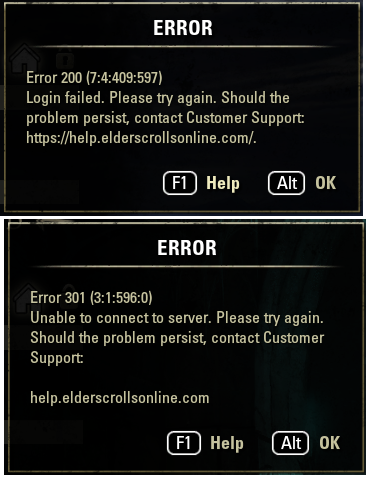
Any help would be greatly appreciated. It's been fun and would really prefer not being forced to go back to the other games because of these problems.
Any help would be greatly appreciated. It's been fun and would really prefer not being forced to go back to the other games because of these problems.
0
-
JorvaldSoul ShrivenMore problems: Error 201 and if I do happen to get into the character selection, i get this..
0 -
 Magus✭✭✭✭✭Having the same issues.Duraeon / Maoh
Former Emperor of Haderus, Trueflame, and Azura's Star
PC/NA0 -
 wrlifeboil✭✭✭✭✭Almost afraid to post this but I didn't have any problems with lag this past weekend on the NA megaserver. I was expecting some lag with the welcome back weekend promo but happily there weren't any problems.0
 -
 ZOS_MollyHmodGreetings!
We have narrowed down some of the causes of players getting logged out and receiving an error <<1>> when trying to log back in. It does appear to be connectivity based, as players who have resolved it have been able to do so using connection troubleshooting. If these steps do not help resolve your issue, please be sure to contact customer support for more direct one-on-one assistance!
Below is a list of steps that may help with basic connection issues:Step 1: Make an exception/whitelist inside the anti-virus software to allow either the Elder Scrolls Online: Tamriel Unlimited folder or the specific files of ESO.exe and the Bethesda.net_Launcher.exe.
Step 2: Forward ports in the router to make sure it isn't blocking anything we are trying to send out.
To do this, players will need to access a setup utility for their router. Try opening a web browser and typing "192.168.1.1" into the address bar. If that does not work, players will need to find out what their router's IP address is. To do this, follow the directions below:
For a PC:- •Press Windows key + R.
- •Type cmd as a command, and press OK or Enter to access the command line.
- •Type ipconfig to get the information.
- •Click on System Preferences from the dock (the Gear icon).
- •Select Network.
- •Select the active connection (Green Dot).
- •Check the Router section.
There should be a prompt for a username and password to enter the router's setup utility. The following are four commonly used default combinations that players can try. Players who have previously entered the gateway may have setup another combination that they should enter here instead:
Username / Password- •admin / password
- •admin / [blank]
- •admin / 1234
- •[blank] / admin
Once players are on the router gateway, they should navigate to the "Security" or "Firewall" section and set any options to Low. These firewalls are additional security to any firewalls installed on a player's computer.
While players are in their router, they should also forward ports that the game uses. On the "Port Forwarding" screen, there should be a button called Add Port Forwarding or Add Service. Press it and enter the port details. Below are the three sets players will want to create:
Set One- •Name: ESO Game
- •Start Port: 24100
- •End Port: 24131
- •Protocol: TCP/UDP or "Both"
- •Server IP: (enter the computer's IP address)
- •Enable Port Forwarding
Set Two- •Name: ESO Lobby
- •Start Port: 24500
- •End Port: 24507
- •Protocol: TCP/UDP or "Both"
- •Server IP: (enter the computer's IP address)
- •Enable Port Forwarding
Set Three- •Name: ESO Lobby2
- •Start Port: 24300
- •End Port: 24331
- •Protocol: TCP/UDP or "Both"
- •Server IP: (enter the computer's IP address)
- •Enable Port Forwarding
Once the port forwarding is complete, players will want to flush their DNS:
Windows 8:- •Press Win+X to open the menu.
- •Right-click on Command Prompt and select Run as Administrator.
- •Type ipconfig /flushdns and hit Enter.
- •If it was successful, players will see the message "Windows IP configuration successfully flushed the DNS Resolver Cache."
- •Power cycle the router to clear the cache so that it doesn't store the bad route.
Windows 7:- •Click on the Start button.
- •Type cmd in the Start Menu.
- •Right-click on Command Prompt and select Run as Administrator.
- •Type "ipconfig /flushdns" and hit Enter.
- •If it was successful, players will see the message "Windows IP configuration successfully flushed the DNS Resolver Cache."
- •Power cycle the router to clear the cache so that it doesn't store the bad route.
Windows XP:- •Click on the Start button.
- •On the Start menu, click Run.
- •Type "ipconfig /flushdns" and hit Enter.
- •Power cycle the router to clear the cache so that it doesn't store the bad route.
Mac OS X Mountain Lion or Lion:- •Open up a Terminal application. It is located in Applications/Utilities/Terminal.
- •Enter the command: sudo killall -HUP mDNSResponder
- •Players will be prompted to input their administrator password.
Finally, to powercycle a home network, please follow these steps:- Turn off the router by unplugging it. Players who have a modem and router in one device should turn it off and then proceed to step 3.
- Turn off the DSL or cable modem for three minutes.1.Note: If the modem has one, please remove the backup battery to completely turn off the modem.
- Turn off all computers attached to the network.
- Turn on the DSL or cable modem first and let it boot. Let it complete its connection to the ISP before proceeding to the next step. Players who have a modem and router in one device should proceed to step 6 after it connects to their ISP.
- Once the modem completes the connection to the ISP, plug in the router. Let it complete its power on Test before proceeding to the next step.
- Restart the computers.
The Elder Scrolls Online: Tamriel Unlimited - ZeniMax Online Studios
Forum Rules | Code of Conduct | Terms of Service | Home Page | Help Site0
