Maintenance for the week of December 8:
• ESO Store and Account System for maintenance – December 10, 9:00AM EST (14:00 UTC) - 12:00PM EST (17:00 UTC)
• ESO Store and Account System for maintenance – December 10, 9:00AM EST (14:00 UTC) - 12:00PM EST (17:00 UTC)
PLEASE Fix the Screen Dimensions
Kammakazi
✭✭✭✭✭
✭✭
✭✭
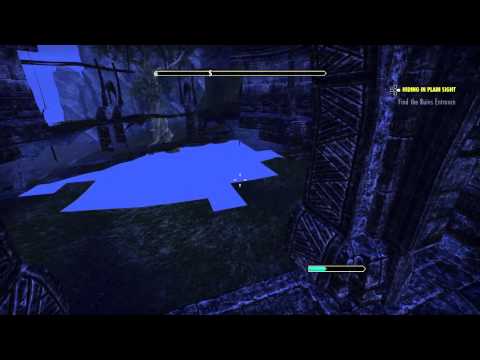
On PS4 and only on PS4, there are black bars on all 4 sides of the screen whenever you capture a screenshot, record a video, or stream. Also, changing the screen dimensions in the options DOES NOT remove the black bars mentioned above ^
Here's a video example:
 https://www.youtube.com/watch?v=3HjAOvQNHHk
Here's a video example:
https://www.youtube.com/watch?v=3HjAOvQNHHk 0
-
 Xelrick✭✭✭hmm mine doesn't do that
 https://www.youtube.com/watch?v=AMHCW_bGD9g
I'd check the HDMI settings on your PS4, I suspect it related there as if for whatever reason the PS4 fails to find 1080p or 1080i it forces at a lower setting,
This also could be related to a Fail HDMI communication between the TV and PS4.. Which is a common issue with black bars.
The PS4 and TV talk to each other, on boot the TV tells the PS4 your TV screen size and resolution. If for whatever the communication is lost or whatever reason. The PS4 will assume the screen size and resolution.
But this could also be related to the PS4 3.00 patch. I'll look into it myself.
____
Hey I looked into it, check your TV ASPECT settings and see if it set to Full 100%/Just Scan. If you scales your PS4 screen setting to a ASPECT other than Full 100%/Just Scan, it will create black border around your captures.Edited by Xelrick on October 5, 2015 7:40PMXelrick: "Do not mix chaos with madness. It will only lead to unexplored adventures."0 -
 MacCait✭✭✭✭✭
✭Hi,
I too am having the same problem as Kammakazi. I can't see how it is Aspect Settings on the TV because it is only with ESO. I have recorded video of ESO and other games via elgato game capture HD, but only ESO has the black border around it. I have also tested this with screenshots. If I screenshot another game, no border, but is I screenshot ESO = black border.
I thought perhaps this could be a setting in-game, however changing any settings in game makes no difference.
I also cannot find any setting on PS4 to make any difference.
Does anyone else have any thoughts to solve this issue?0 -
Xelrick✭✭✭ESO does have a screen adjustment try changing that . See If the that adjustment screen lines go beyond borders of your tv screen. Try that take a pic . ESO only game I have that has this option to change screen size.Xelrick: "Do not mix chaos with madness. It will only lead to unexplored adventures."0
-
MacCait✭✭✭✭✭
✭That was the first thing I had tried. It doesn't change the output, only the view of the screen while playing. There are no black borders while playing, only when taking screenshots or capturing video via game capture (elgato). As far as the elgato, ive tried both the HD and HD60, they are both the same. On other games, no border.0 -
MacCait✭✭✭✭✭
✭I've noticed if I take screenshots or video from the PS4 (not using elgato game capture), the black border is present. The fact that it isn't present on other games suggests it is something to do with ESO rather than the PS40 -
Xelrick✭✭✭I'm on the PS4, I believe is your issue is your TV ASPECT... Here is why
On my TV I have several Aspect settings
This game you must Adjust base on Full 100%/Just Scan to not have black bars (You still must go to OPTIONS > VIDEO > ADJUST SCREEN and scale that screen all the way.
First is TV at Full 100%
This is when my TV Aspect set to Normal (I adjusted OPTIONS > VIDEO > ADJUST SCREEN base on this Aspect )
^This is my guess is the issue. Must games automatically set at Full 100% this is why you don't see black bars...
Here one thing you should also try on the other games go to a STATIC place (spot with minimum movement) and take a screenshot. Then compare the screenshot to the gameplay and see if you see more around the edges of the screenshot vs. gameplay.Xelrick: "Do not mix chaos with madness. It will only lead to unexplored adventures."0 -
MacCait✭✭✭✭✭
✭Thanks for the reply Xelrick ☺
I see what you are saying, however I can now confirm the “TV Aspect” is NOT the issue in this post. Here is why:
1. This post is about video capture, NOT how the game appears on the TV screen. Personally, my game appears at 100% on the TV Screen. It is ONLY in game capture (either by PS4 capture OR by Elgato Game Capture) that the black bars appear!
2. I have checked my “TV Aspect” (TV Ratio aka TV Size) and it is at 100%. This has nothing to do with the game capture, it only affects the view of the game as you are playing it on your TV, NOT the output of the game as it is being recorded by a capture device. It should also be noted that not all TV’s have “TVAspect”.
3. The black borders and reduced screen size only occurs within ESO at output (game capture), it occurs in no other game. This indicates it has nothing to do with a TV setting, but something that is occurring specifically within ESO.
4. OK, apart from the three previous reasons that indicate it is not “TV Aspect”, I also did some more investigating and testing today.
From this investigation I can confirm the problem is definitely NOT to do with ‘tv aspect’ (or tv ratio). From this investigation I have found that it MUST be due to a game patch that occurred on the 16th September 2015. This is why:
Investigation Part 1:
As you suggested, I tried other games and took video and screen shots from static points as well as within the main Playstation menu…
The first thing I did was to record via my Elgato Game Capture HD 60. I started this recording while in the normal Playstation Menu. All appeared fine. The screen that is recorded is at 100% and is exactly how it appears on screen as it is being viewed.
pic upload
I then opened up another game DC Universe Online while still recording. As you can see from the screen shot of the loading screen taken from the video capture, there are no black borders and no reduction in screen size within the capture.
screencast
I went in game and for 5 minutes travelled around the game (as you said to "Static points". As you can see from the screen shot, there is NO black border or resizing of the picture upon video recording via game capture.
image upload no compression
I then quit DCUO and went into ESO. I found that when the game is being loaded, there is NO black borders. You can notice this from looking at the smoke at the bottom of the screen in the screen shot.
upload a gif
Then when the game enters the EU server and I am at character select screen, suddenly there are BLACK BORDERS, and you can see that this has reduced the size of the viewable screen. To be absolutely clear, this is ONLY on video recording! This is NOT on the TV screen itself. On the TV screen the game appears at 100%. In the video output (the recorded game) the screen has BLACK BORDERS reducing screen size!
image upload without registration
uploading images
I then went in game to walk around, and the same thing is noticed. The BLACK BORDERS and reduction in screen size is present.
upload image free
I then quit ESO and returned to the Playstation Menu and as you can see, no black borders are present.
free photo hosting
So, this investigation shows that it is only something occurring once you log into the Europe Server in ESO. It occurs within no other game.
Investigation Part 2:
The next thing I did was to go through all the videos I have recorded on the PS4. The PS4 has its own game capture ability. I noticed that I recorded 39 videos from June to 15th September 2015. All of these videos had no problem with reduced screen size on output, and thus NO black borders.
I noticed that from the 16th September 2015 I recorded a further 36 videos via PS4 capability, and ALL of these 36 videos from the 16th September have BLACK BORDERS and reduced screen dimensions.
picture host
No setting has ever changed on my TV. Nothing has ever been changed in the settings on my PS4. The only thing that changed was an ESO update on the 16th September 2015.
Conclusion:
The update that occurred on the 16th of September 2015 changed something in game to do with the video capture recording of the game itself. While playing the game there are no black borders and the screen is at 100%. However, in capturing the game by recording either via PS4’s in built ability to record, or via an external device such as the Elgato Game Capture, the result is that BLACK BORDERS appear on the screen, and thus the size of the game capture is reduced.
So, this shows without doubt that it is a problem with the update of the 16th September, and as such is something that could be fixed in an upcoming update!
Could we get ZOS to comment on this?
Thanks0 -
MacCait✭✭✭✭✭
✭Checking the patch notes I see that the update on September 16th was Imperial City. So, prior to Imperial City, game capture was full screen, but after Imperial City, there is a black border.0 -
Xelrick✭✭✭Here the thing when you go to Screen Adjust ingame can you go beyond the TV screen border with the lines?? Because I can't if I using FULL... Also if I'm not having the issue then it may be a setting on your end not directly patch related...
Show me what happens when you use Screen Adjust in Options
---
BTW the day of that patch you had your option settings also reset to default... and your issue seem that you need to readjust you Screen Adjustment in OPTIONS > VIDEO > Screen Adjustment... as this option creating your black bars... which if your not seeing it while playing then your TV doesn't support Just Scan or Full aspect...
The PS4 and Most other games uses the PS4's Screen Adjustment, which likely you never touch, it default base on Full 100% TV aspect. ESO uses both PS4's Screen Adjustment and it own Ingame Screen Adjustment (which loads at character select, as OPTIONS can be set there...)
My suggestion is go in OPTIONS and rescale Screen Adjustment (maybe beyond your screen)Edited by Xelrick on November 26, 2015 12:31AMXelrick: "Do not mix chaos with madness. It will only lead to unexplored adventures."0 -
MacCait✭✭✭✭✭
✭I'll look next time i'm on.
It sounds to me that using your "TV ASPECT" you are 'zoomed' in on your TV. This means that on output you are not experiencing the problem, however, it may also mean that visually you are missing aspects of the picture in game (not being recorded but just playing). However for everyone else who isn't 'zoomed' in on certain tv sets, this change in the IC patch means they have this problem. Checking with some others in my guild who don't use the forums, they are also experiencing this issue.
A way around it may be to use the screen adjustment option and put the corners beyond the screen so that output to video is ok, however, this means that the picture on screen will be zoomed in and the edges of the picture will be OFF screen during actual play. This is a bit annoying and unnecessary as it was not this way prior to September 16th.
It would be good if someone from support could answer if this is to be fixed
0 -
MacCait✭✭✭✭✭
✭Bare in mind not everyone has the same functions on their tv. On my tv I have a setting to change the size and position of the screen, but I do not have "TV ASPECT".0 -
Xelrick✭✭✭setting to change screen size on your TV is what I'm talking about. You want to one that zoomed out the most which normally call Just Scan or 100% Full. Now I do know some TVs don't give that screen option... Which highest setting would be under zoom Normal which I suspect your TV Zoom is...
I record everything with my PS4 Share button...
----
Just Scan Zoom eliminates Overscan(Normal Zoom)
Here info about TV Overscan http://www.engadget.com/2010/05/27/hd-101-overscan-and-why-all-tvs-do-it/Xelrick: "Do not mix chaos with madness. It will only lead to unexplored adventures."0 -
MacCait✭✭✭✭✭
✭Yes I did understand what you where talking about, but that was an interesting article too, thanks
So at least we know why you are not seeing this, as you are zoomed in on your tv. But without being zoomed in, the bars are there.
My point is that I don't just play ESO, I use my PS4 to play other games too, so for me personally, zooming in like this is not an option. I have my TV set up nicely for everything. It is a shame that my favorite game now has developed a problem like this.
The solution I am looking for from Zenimax would be to fix this in a future update and return the game image output to how it was prior to the Imperial City dlc. I am wondering if Zennimax are even aware of this though.0 -
Xelrick✭✭✭Actually it the opposite I'm zoom out, so I see everything even other games this is why l don't have black bars... Again I record through my PS4 so changing my TV zoom doesn't affect recordings...
So here I want you to go on the PS4 Library- Settings >Sound and Sceen > Display Area Settings. See if that Enlarge is greyed out and that you can see the border white bars, (use this to find the right zoom setting on your TV.) If not both you are zoom in or your TV doesn't allow screen size (Full 100%). My TV screen sizes options has Full 100%, Normal, Wide, Cinema, and Zoom...
In my TV manual Full 100% is meant to be used for PCs and game consoles. Normal(16:9) meant for watching Live broadcast and TV shows.
If you are adjusting you ESO screen to match in my case TV screen size Normal (16:9) you will create those black bars on capture... PS4 Capture ment to record alway on Full 100%(non overscan) screen size...
All and All you want to match your TV screen size with the highest Screen adjustment setting in game, but not match your ingame screen adjustment to your TV screen size.
Do this while changing ingame Screen size take a picture when border matched your screen and one all the way pass your screen. That what I did with those two pictures above while I was under Normal(16:9) screen size on my tv to show what your issue is.
It not a patch issue either, just that your settings changed after the patch and you probably had ingame screen size max before patch, but after patch you match ingame screen to your TV screen as you had to again on day of patch...
BTW notice when PS4 saids when it can record that when your settings are loadedXelrick: "Do not mix chaos with madness. It will only lead to unexplored adventures."0